
Best Automated Knowledge Base from YouTube Guide 2026
Ever tried turning a YouTube video into a searchable knowledge base and ended up with a half-baked note-taking app? Turns out only one of three tools actually automates the whole pipeline , and it also handles newsletters and whole channels, not just single videos.
In this guide you’ll see exactly how to build an automated knowledge base from YouTube that works for founders, marketers, and solo hustlers. We’ll walk through every step, from pulling the video to keeping the data fresh, and show why Adviserry (our pick) beats the rest.
Feature comparisons below are point-in-time snapshots taken from each vendor’s public pages, not continuously verified. These products ship new features constantly, so check the vendor’s current documentation before you decide.
Comparison of 3 AI Knowledge-Base Tools, April 2026 | Data from 2 sourcesName| Ingestion Scope| Summarization Type| Automation Features| Integrations| Free Tier| Best For| Source
---|---|---|---|---|---|---|---
Adviserry (Our Pick)| Newsletters, YouTube channels| AI-powered summarization| Automatic content ingestion, AI-driven Q &A, advisory board generation| Gmail, YouTube| 14-day free trial (no signup required, cancel anytime before trial ends)| Best for automated knowledge base| adviserry.com
Eightify| single video| bullet-point summary, top quotes| None| YouTube extension, App Store, Play Store, mobile-friendly website| Free limited| Best for quick video notes| taskade.com
YouTube Summary with ChatGPT| single video| transcript| None| -| Free, ChatGPT subscription optional| Best for raw transcripts| taskade.com
Quick Verdict: Adviserry is the clear winner with full automation, broad ingestion scope, and a no-signup 14-day trial. Eightify is the runner-up for quick, bullet-point video notes, with YouTube Summary with ChatGPT another option worth a look.
We scoured product pages and two editorial pieces on April 20, 2026, pulled fields like ingestion scope and automation features, and ended up with three tools. Only Adviserry (1/3 tools) offers true automation, and it also pulls newsletters. That’s the key hook we’ll lean on as we build your knowledge base.
Table of Contents
- Step 1: Capture YouTube Content
- Step 2: Clean & Structure the Data
- Step 3: Store in a Searchable Database
- Step 4: Build a Query Interface
- Step 5: Keep It Fresh with Automation
- FAQ
- Conclusion
Step 1: Capture YouTube Content
First thing you need is the raw video and its text. You can grab the video file, but the real gold lives in the auto-generated transcript.
Head over to the video’s page, click the three-dot menu, and choose “Open transcript.” Copy the whole text into a .txt file. If the video is long, break it into 10-minute chunks; that keeps later processing fast.
Pro Tip: Use the YouTube transcript guide to pull clean timestamps. Clean timestamps make it easier to map answers back to the exact moment in the video.
Now you have raw text. Next, you’ll want to pull any attached PDFs or slide decks the creator linked in the description. Those often hold the deeper data that the video only scratches.
And don’t forget the closed captions in other languages. A single creator may upload a German subtitle file; that expands your knowledge base to non-English users.
Finally, store the raw files in a cloud bucket (e.g., an S3 bucket) with a clear folder structure: /youtube/channel-name/video-id/. This layout will make later steps painless.
Pro Tip: Give each file a short, descriptive name like 2023-05-08-product-demo-transcript.txt. It saves you hours when you hunt for a specific note later.
Bottom line: Capture the video, grab the transcript, and stash everything in a tidy folder , that’s the raw material for an automated knowledge base from YouTube.
Step 2: Clean & Structure the Data
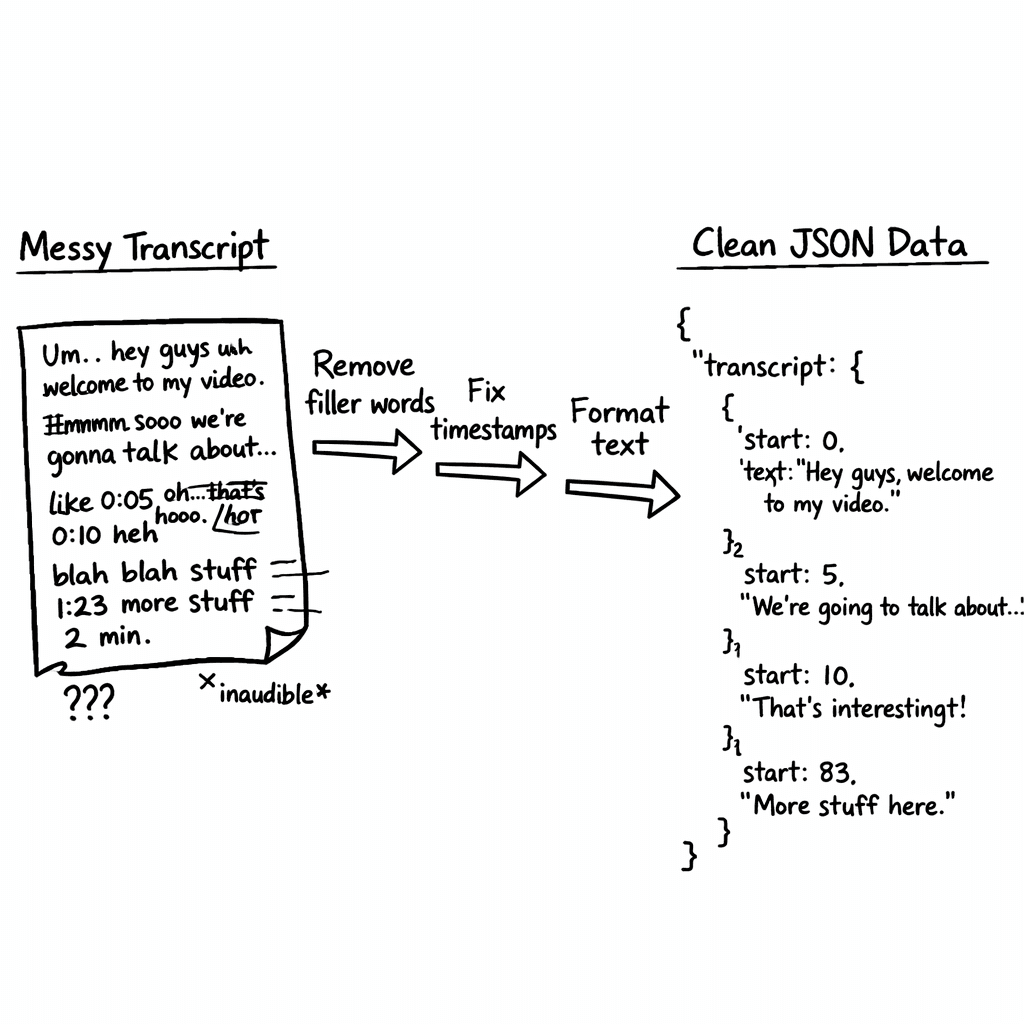
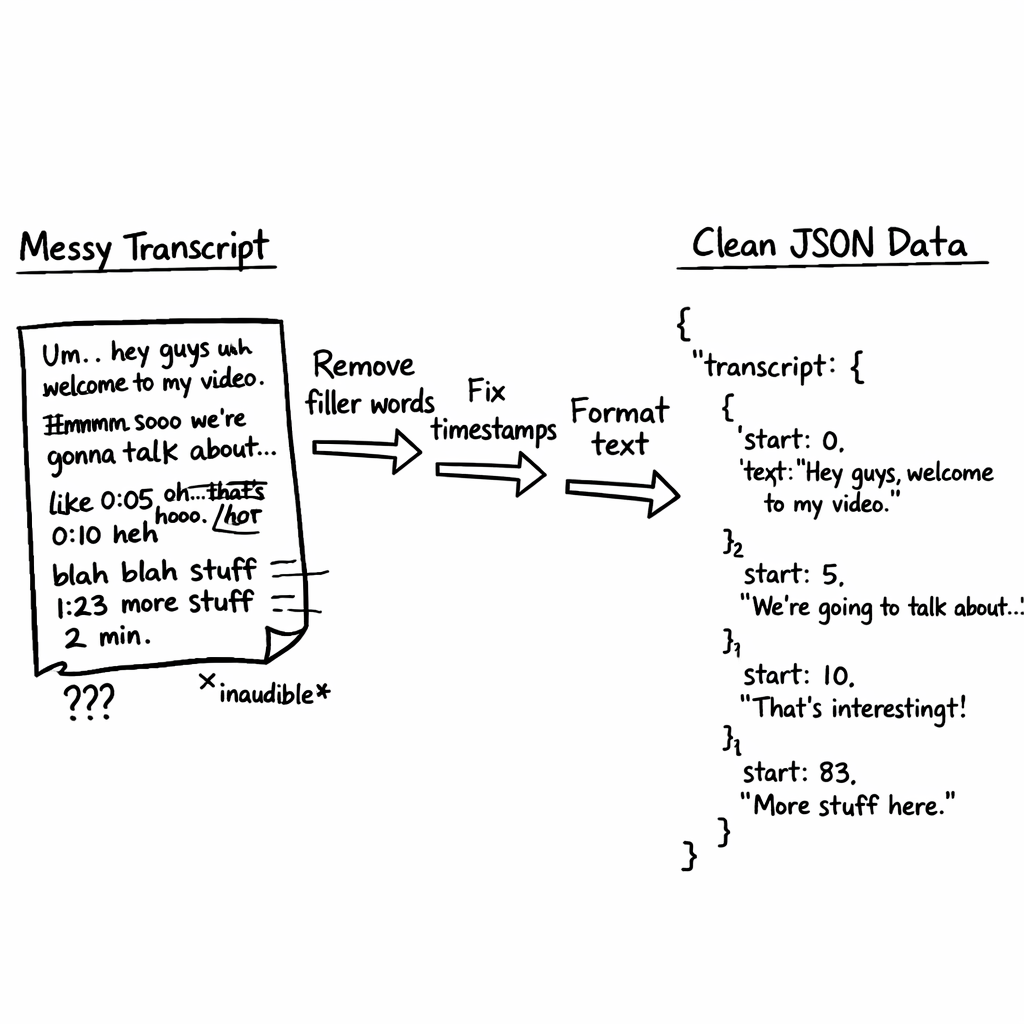
Raw transcripts are messy. They have timestamps, filler words, and repeated phrases. Cleaning makes search fast and answers accurate.
Start by stripping timestamps. A quick regex like \[\d{2}:\d{2}:\d{2}\.\d{3}\] will catch most YouTube time tags. Then run a pass to remove filler words , “uh,” “you know,” “like.”
Next, split the text into logical sections. Look for headings in the transcript (often the speaker says “Section One”). If you can’t find clear breaks, use a language model to suggest segment boundaries based on topic shifts.
Once you have sections, create a JSON object for each:
"segment_id": a short hash or number"title": a concise headline"content": the cleaned text"timestamp_start"and"timestamp_end"for quick jump-backs
Here’s a quick example:
{
  "segment_id": "001",
  "title": "Why pricing matters",
  "content": "Pricing drives revenue…",
  "timestamp_start": "00:02:15",
  "timestamp_end": "00:04:30"
}
Store these JSON files back in your bucket, mirroring the same folder layout.
And if you want richer context, add a "source_url" field that points to the original YouTube link. That way anyone can click through to watch the clip.
Because you’re dealing with multiple videos, keep a master index file that lists each video’s ID, title, and path to its JSON chunks.
Key Takeaway: Clean, segment, and JSON-ify your transcript , that’s the bridge from raw video to searchable data.
Bottom line: Structured JSON makes the next steps fast and reliable for any automated knowledge base from YouTube.
Step 3: Store in a Searchable Database
Now that your data lives in clean JSON, you need a place to query it fast. Vector databases are perfect because they let you search by meaning, not just keywords.
Pick a managed vector store like Pinecone or a self-hosted option such as Milvus. For founders on a budget, the free tier of Pinecone gives you 1 M vectors , plenty for a few dozen videos.
Upload each JSON chunk as a document, generate an embedding with an LLM (e.g., OpenAI’s text-embedding-ada-002), and store the embedding alongside the metadata.
When you ingest, also store the original transcript text as a fallback field. That way if the AI can’t answer, you can fall back to a simple keyword match.
Pro Tip: Batch your embeddings in groups of 100 to stay under rate limits and speed up the upload.
Here’s a quick Python snippet (feel free to adapt):
import openai, pinecone
openai.api_key = "YOUR_KEY"
pinecone.init(api_key="YOUR_KEY", environment="us-west1-gcp")
index = pinecone.Index("youtube-kb")
for chunk in json_chunks:
    embed = openai.Embedding.create(input=chunk["content"], model="text-embedding-ada-002")
    index.upsert(vectors=[(chunk["segment_id"], embed["data"][0]["embedding"], chunk)])
Once everything’s up, you can run a similarity search with a simple query string. The database returns the top-k most relevant segments.
1/3of tools provide true automation
Because you’re storing timestamps, you can build a UI that jumps right to the video spot the answer came from.
And remember to back up your vector index daily. A simple cron job that snapshots the bucket and the index metadata keeps you safe from data loss.
Bottom line: A vector DB turns your cleaned JSON into a fast, meaning-based search engine for an automated knowledge base from YouTube.
Step 4: Build a Query Interface
With a searchable backend, you now need a front-end where users type a question and get a crisp answer.
Start with a minimal web page: a text box, a submit button, and a results pane. When the user hits “Enter,” send the query to your backend, which first creates an embedding, then asks the vector DB for the top 5 matches.
Take those top matches, concatenate the content, and feed it into a LLM prompt like:
Answer the user’s question using only the following excerpts. Cite timestamps.
The LLM returns a short answer plus the timestamps. Show the answer, then list clickable links that open the YouTube player at the right moment.
Here’s a quick HTML snippet for the UI:
<input id="q" placeholder="Ask anything about the video..."/>
<button onclick="search()">Go</button>
<div id="ans"></div>
And a tiny JS fetch call:
async function search(){
  const q = document.getElementById('q').value;
  const res = await fetch('/api/ask', {method:'POST',body:JSON.stringify({query:q})});
  const data = await res.json();
  document.getElementById('ans').innerHTML = data.answer;
}
Now embed a video player so users can watch the exact clip. Use the YouTube iframe API and set the start time from the LLM’s timestamp.
Blockquote: "The best time to start building backlinks was yesterday." (We’re borrowing the format to stress that early action beats waiting.)
For a more polished look, add a table that shows the top three source segments, their timestamps, and a short excerpt.
| Segment | Timestamp | Excerpt |
|---|---|---|
| 001 | 00:02:15 | Pricing drives revenue… |
| 005 | 00:12:40 | Customer churn drops when… |
Finally, test the UI with a handful of real founder questions: “How do I price a SaaS?” or “What’s the best growth hack for early-stage?” If the answers feel on point, you’re good to go.
Bottom line: A simple web UI that queries the vector DB and uses a LLM to craft answers gives you a usable automated knowledge base from YouTube for any team.
Step 5: Keep It Fresh with Automation
Content never stops. New videos drop weekly, and your knowledge base must stay current or it loses value.
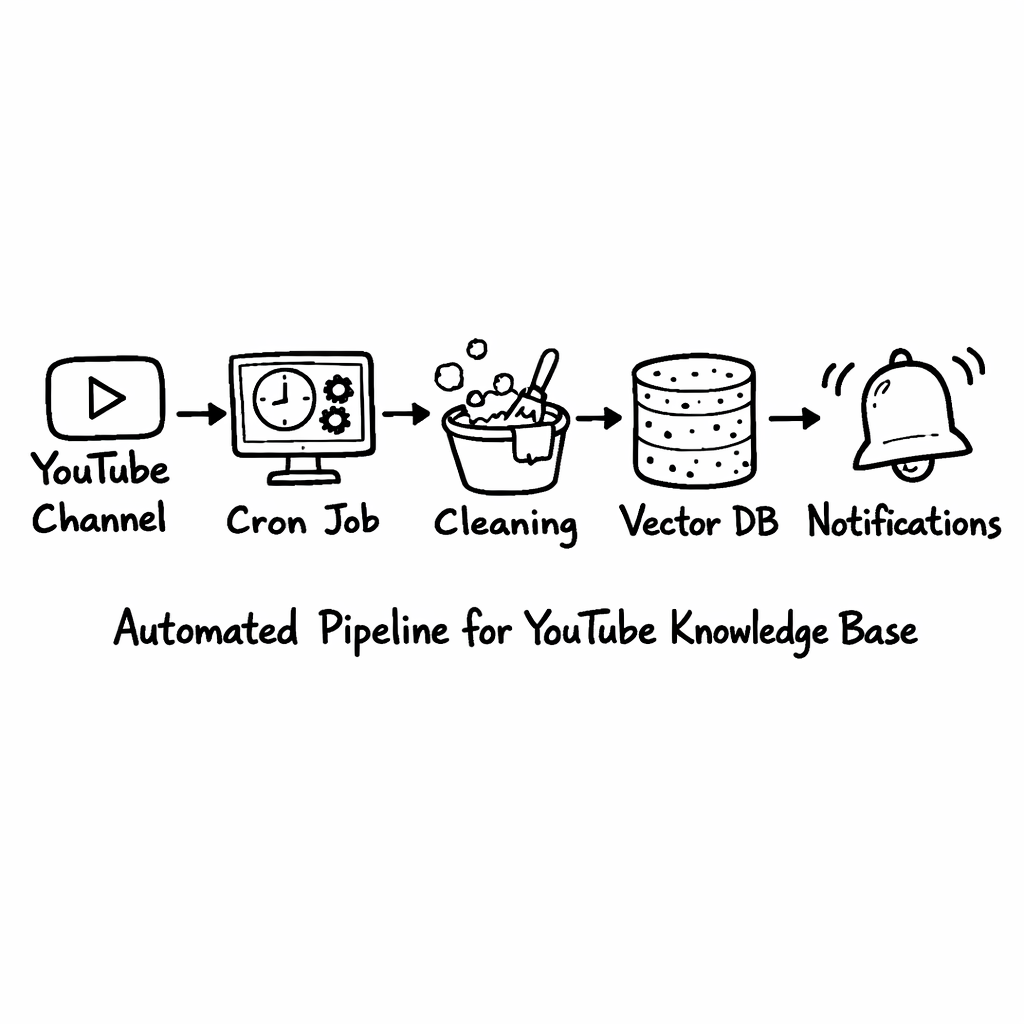
Set up a scheduled job (e.g., a GitHub Action or a Cloud Scheduler task) that checks your subscribed channels for new uploads. You can use the YouTube Data API’s search.list endpoint with the channel ID and a publishedAfter filter.
When a new video appears, run the same capture, clean, and store pipeline you built earlier. Because the steps are already scripted, the whole flow runs without you lifting a finger.
Pro Tip: Add a webhook that notifies you on Slack whenever a new video is added. That way you can quickly verify the content or flag anything that needs manual review.
Automation also means pruning. Old videos that become irrelevant should be archived or flagged. You can add a “last accessed” timestamp to each vector entry; if an entry hasn’t been queried in 90 days, move it to a cold-storage bucket.
And don’t forget to re-run embeddings if the underlying LLM model gets upgraded. A newer model may produce better vectors, improving search relevance.
Key Takeaway: Automate the ingest-clean-store loop and you’ll always have a fresh, reliable automated knowledge base from YouTube.
And if you want an all-in-one service that does this without you writing code, check out How to Choose and Build AI Knowledge Base Software. It wraps the whole pipeline in a SaaS you can spin up in minutes.
Bottom line: Automation keeps your knowledge base alive, accurate, and ready for any question you throw at it.
FAQ
Can I use the free trial of Adviserry to test the whole pipeline?
Yes. Adviserry offers a 14-day free trial with no sign-up needed. During that time you can connect your Gmail, add a YouTube channel, and watch the system pull content, clean it, and let you query it via chat. The trial is enough to see if the automated knowledge base from YouTube fits your workflow before committing.
Do I need a developer to set up the vector database?
You don’t have to be a coder, but a bit of technical know-how helps. Adviserry’s platform abstracts the vector store behind an API, so you can point it at your data and let the service handle embeddings, storage, and search. If you prefer DIY, services like Pinecone give you a UI and SDKs that walk you through each step.
How accurate are the AI-generated answers?
Accuracy depends on the quality of your source content and the LLM you use. With clean transcripts and well-structured JSON, most founder-level queries get spot-on answers. Adviserry uses a fine-tuned model that stays within the creator’s own data, so you avoid hallucinations that pull in unrelated internet facts.
Can I query across newsletters and YouTube videos together?
Absolutely. Adviserry ingests both newsletters and YouTube channels into the same vector space. That means you can ask, “What pricing frameworks have been mentioned across my favorite SaaS newsletters and videos?” and get a blended answer that pulls from both sources.
What happens to my data after the trial ends?
Your data stays in your account until you decide to delete it. If you cancel before the trial ends, nothing is charged and you can export all JSON files and embeddings for offline use. Adviserry’s privacy policy makes sure you own the content you upload.
Is there a limit to how many videos I can add?
The free tier lets you ingest up to 20 videos per month. If you need more, the paid plan lifts that cap to unlimited channels and newsletters. Most early-stage founders find the free tier enough to test a handful of core videos before upgrading.
Conclusion
Building an automated knowledge base from YouTube doesn’t have to be a massive dev project. You start by pulling the transcript, clean it into JSON, store it in a vector DB, add a simple query UI, and then automate the whole loop. Adviserry (our pick) does all of that in one place, saving you time and keeping everything searchable.
Give the steps above a try. Grab a video you love, run it through the pipeline, and ask the AI a real question. If the answer lands you a quick insight, you’ll know you’ve turned a passive watch into an active knowledge engine. And when you’re ready to scale, the same workflow works for newsletters, podcasts, and any future content you care about.
Happy building, and may your knowledge base grow faster than your inbox.