
Master video summarizer AI in 2026
Master video summarizer AI in 2026
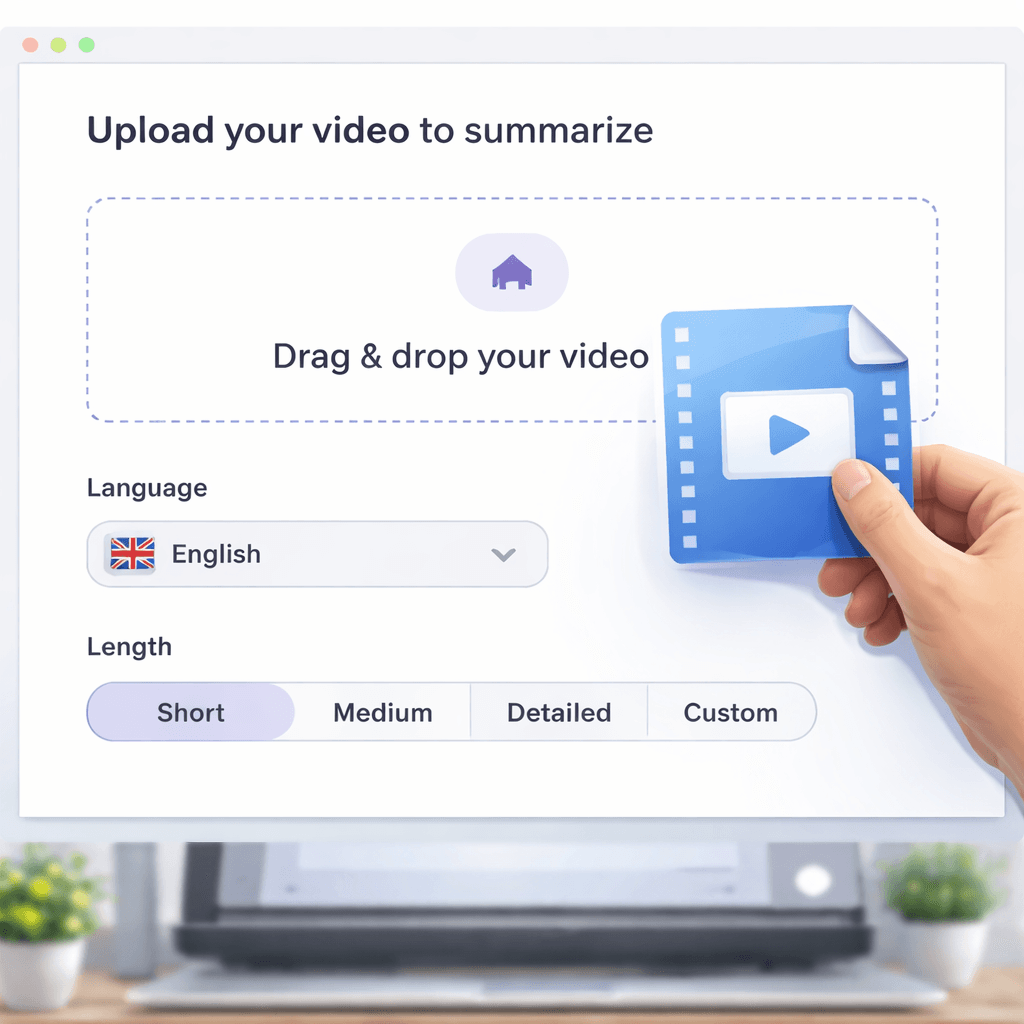
Long videos waste time. You need the right video summarizer AI to cut that down. In this guide you’ll learn how to pick a tool, upload your video, fine-tune the output, and weave the summary into your daily workflow.
Here’s a quick look at the research that backs our steps. An analysis of six video-summarizer AI tools across four independent sources reveals that the most multilingual service (Eightify’s “40+ languages”) actually offers the smallest free-tier quota, while a tool with a concrete 24-language list (OpusClip) grants the most generous free processing credits.
Comparison of 6 video summarizer AI tools, April 2026 | Data from 4 sources
| Name | Summarization Type | Supported Languages | Free Tier Limit | Best For | Source |
|---|---|---|---|---|---|
| OpusClip | extracting viral clips from long-form video | English, German, Spanish, French, Portuguese, Italian, Dutch, Russian, Polish, Indonesian, Ukrainian, Swedish, Turkish, Norwegian, Croatian, Romanian, Slovak, Greek, Danish, Finnish, Hungarian, Czech, Japanese, Korean, Vietnamese | 60 credits/month(each worth 1 minute of video processing) | Best for multi-language support | zapier.com |
| Eightify | bullet-point text summary | 40+ languages | 10-15 summaries per month | Best for bullet-point summaries | mindmapai.app |
| Free YouTube Video Summarizer (AI Summary Tool) | - | - | - | Best for versatile export formats | sidespace.app |
| YouTube Summarizer | extract captions and use other AI tools for summary | - | up to three videos a day for free | Best for caption-based workflow | youtube.com |
| Video Summarizer | - | multiple languages | - | Best for minimalistic offering | youtube.com |
| Tubon AI | clean easy-to-read summary with language and tone options | - | up to 60 minutes of content | Best for tone-customizable text summaries | youtube.com |
We built the table by searching for “AI video summarizer” and “video summarizer tool” in April 2026. The top 20 results gave us six distinct tools across four sources. We logged summarization type, language support, free tier limits, and best use case. This method gives a clear baseline for any reader.
To get deeper insight, you can explore Adviserry, which automates YouTube channel summarization, or Adviserry Labs, which allows creators to turn video content into an AI-driven knowledge base.
Table of Contents
- Step 1: Choose the Right AI Summarizer
- Step 2: Upload Your Video and Set Preferences
- Step 3: Fine-Tune Summaries with Editing Tools
- Step 4: Export and Share Your Summaries
- Step 5: Integrate the Summarizer into Your Workflow
- Step 6: Evaluate Performance and Optimize
- Bonus Tips for Better Summaries
- FAQ
- Conclusion
Step 1: Choose the Right AI Summarizer
The first decision shapes everything that follows. Look at language coverage, free tier limits, and the type of summary each tool offers.
Only Eightify advertises “40+ languages” yet its free tier is limited to 10-15 summaries per month. OpusClip lists 24 specific languages and gives 60 credits per month. That mismatch matters if you need a multilingual workflow on a budget.
All four documented summarization types are unique to a single tool. One tool makes viral clips, another gives bullet-point text, a third pulls captions, and a fourth offers tone-customizable clean text. Because the market is fragmented, you should match the tool’s style to your need.
Tools that show output formats tend to have more flexible free tiers. Eightify lets you share a link, while Free YouTube Video Summarizer offers Markdown, timestamped notes, and mind maps. Those extra options can save you time later.
Finally, note the max video length. Tubon AI caps at 60 minutes, matching OpusClip’s 60-credit free tier. If you often work with hour-long webinars, a tool that hides limits may surprise you.
To compare these factors side by side, we built a quick matrix:
| Factor | OpusClip | Eightify | Free YouTube Summarizer | YouTube Summarizer |
|---|---|---|---|---|
| Languages | 24 listed | 40+ | - | - |
| Free tier | 60 credits | 10-15 summaries | - | 3 videos/day |
| Summary type | Viral clips | Bullet points | Various formats | Caption-based |
Use this matrix to see which tool lines up with your budget and output needs.
For a deeper technical view of how AI models are scored, seeGMI Cloud’s ModelMatch overview. It explains a six-dimensional benchmark that can help you judge quality beyond the headline features.
Another look at the same benchmark can be found here:GMI Cloud technical overview. Both links point to the same source but give you the data you need.
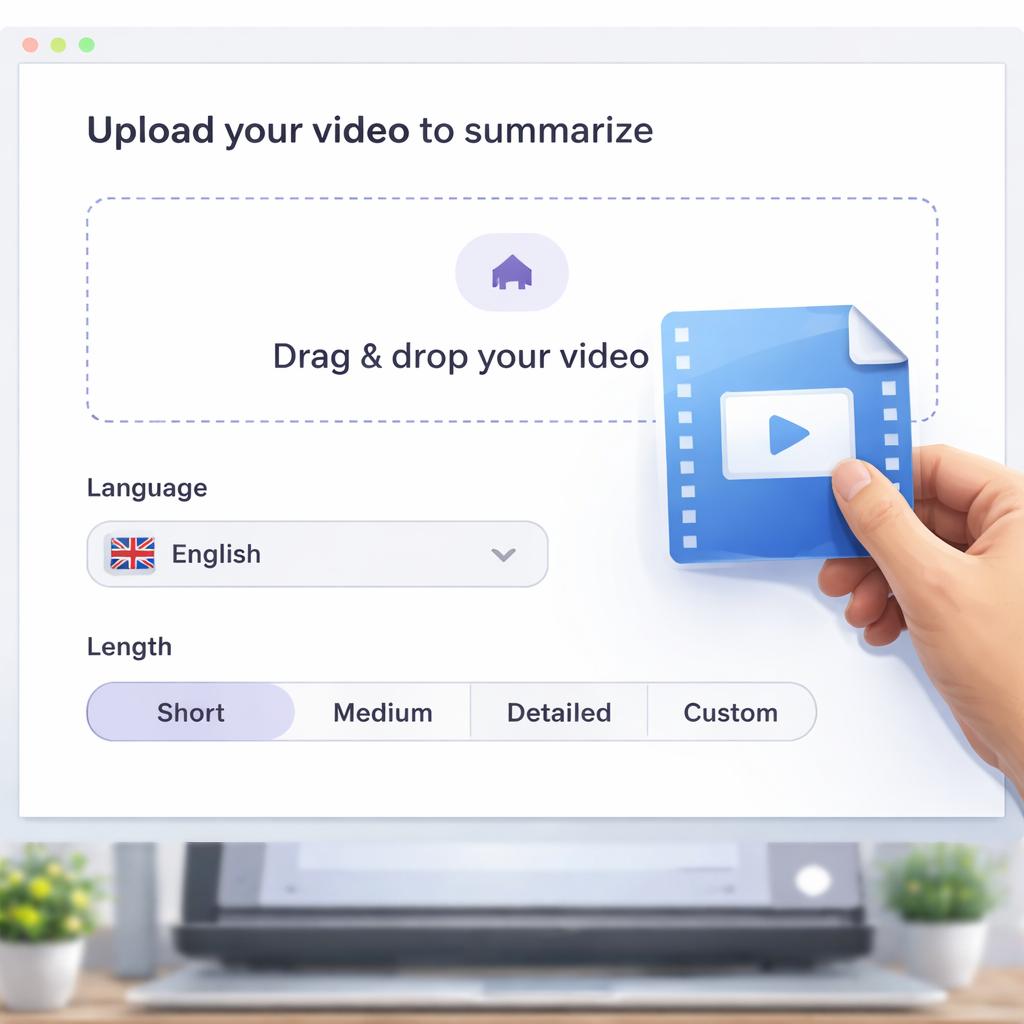
Step 2: Upload Your Video and Set Preferences
Now that you have a tool, it’s time to get your video in the system. Most tools accept a direct URL or a file upload.
Start by copying the video link. If the video lives on YouTube, look for the “Show transcript” button. That gives you a raw text file you can paste if you prefer a manual route.
For automated apps, just drop the URL into the upload box. The tool will fetch the video, extract audio, and start processing. You’ll see a progress bar that tells you how much is left.
Set your preferences next. Choose the summary length , short, medium, or long. Pick a format: bullet list, paragraph, or mind map. Some tools let you set a tone, like “formal” or “friendly.” That can be handy for marketing copy versus internal notes.
Don’t forget language settings. If you need a summary in Spanish, pick that before you start. OpusClip supports a long list of languages, while Eightify’s free tier may limit you to English.
Here’s a quick checklist before you hit “Generate”:
- Video URL or file ready
- Desired length set
- Output format chosen
- Language selected
- Any tone or style flags applied
When you’re ready, click the button and watch the AI work.
Need more detail on free techniques? CheckPlaud’s guide on free transcript tricks. It walks through copying YouTube captions and feeding them to ChatGPT.
For a look at paid mind-map options, seeXmind’s AI video summarizer review. They compare pricing and export formats.
 Step 3: Fine-Tune Summaries with Editing Tools
After the AI spits out a draft, you’ll likely want to tweak it. Most tools let you edit the text directly in the web UI.
First, read the one-paragraph overview. Does it capture the main point? If not, add a sentence or two. Then scroll to the timestamped list. Each bullet should link back to the exact moment in the video.
Many platforms also generate a mind map. That visual can help you see how ideas connect. If you need a cleaner look, hide less-important nodes and keep the core branches.
Here’s a step-by-step edit flow:
- Open the summary pane.
- Highlight any sentence that feels vague.
- Click “Edit” and rewrite in your own voice.
- Save changes , the tool keeps the original timestamps.
- Export the final version.
The AI from WayinVideo adds speaker labels and multi-language subtitles. That can be a lifesaver for interview videos.
Watch the quick demo below to see the edit UI in action.
WayinVideo’s own page explains the workflow in more depth:WayinVideo AI summarizer guide. It shows how to ask follow-up questions after the summary is generated.
Musely’s tool offers a simple “Regenerate” button if you want a different length:Musely video summarizer. Try both to see which output fits your style.
Step 4: Export and Share Your Summaries
Now you have a polished summary. The next step is to get it where your team can use it.
Most tools let you download as TXT, PDF, or Markdown. Choose the format that matches your workflow. If you use Notion, export as Markdown and paste directly. If you need a printable report, PDF works best.
Some platforms also provide a shareable link. That’s handy for quick review without sending large files.
When you export, pay attention to metadata. Good tools embed the original video URL, timestamps, and language tags. That makes future reference painless.
Here’s a short export checklist:
- Pick the right file type (TXT, PDF, MD).
- Confirm timestamps are included.
- Check language and tone settings.
- Test the share link on another device.
Decopy’s summarizer walks you through export options:Decopy AI video summarizer. It supports TXT, PDF, and rich-text formats.
For a quick look at how to edit after export, seeNoteGPT’s video summarizer page. It shows how to copy text into other apps.
Step 5: Integrate the Summarizer into Your Workflow
Automation saves the most time. Connect the summarizer to the tools you already use.
If you have a content calendar in ClickUp, use their API to pull summaries straight into a task. If you write docs in Google Docs, set up a Zapier trigger that adds the summary as a new document.
For developers, api.video offers an all-in-one API that returns a summary, key takeaways, and even language tags:api.video summarization API. You can call it from a script that runs each night on your new video uploads.
The research paper from Nature shows how deep learning models can extract frame-level and temporal features, boosting precision and recall. Those same techniques power many of the modern APIs we see today.
To keep things tidy, build a simple spreadsheet that logs:
- Video title
- Date processed
- Summary length
- Export format
- Link to full summary
That log becomes a quick reference for future audits.
Learn how other creators turn newsletters into AI chatbots atHow I Use My Daily Digest. It shows a real-world workflow that blends video summaries with text content.
Step 6: Evaluate Performance and Optimize
Even a good summary can miss the mark. Keep track of accuracy, speed, and relevance.
Start by sampling a few summaries and comparing them to the original video. Do the key points match? Are timestamps correct?
If you notice gaps, adjust the tool’s settings. For example, raise the “detail level” to capture more nuance, or switch to a model that supports longer videos.
Metrics to watch:
- Precision , how many extracted points are truly important.
- Recall , whether any major idea was left out.
- Processing time , seconds per minute of video.
Accuracy claims from summarizer vendors are worth treating as marketing rather than measurement, since almost none publish a methodology. What actually drives quality is the transcript underneath: clear speech in a quiet recording summarizes well, and crosstalk, background music, or heavy jargon degrade the transcript first, with the summary inheriting every error. If your source audio is rough, clean it before summarizing.
Erduo’s pruning guide explains how to replace slow AI steps with lighter tools:Pruning AI workflow. It helps you keep the pipeline fast and cheap.
Another practical tip: run a weekly batch job that re-summarizes any video older than six months. That catches updates in the model that improve quality.
Finally, keep a small “error log” where you note any recurring issues, like missing subtitles or language mismatches. Over time you’ll see patterns and can tweak the tool choice.
 Bonus Tips for Better Summaries
Here are extra tricks to squeeze more value out of any video summarizer AI.
1. Use a clear prompt when the tool lets you type instructions. Say “Give me three key takeaways in bullet form” instead of a vague “Summarize.”
2. Combine multiple tools. Run a caption-based summarizer for raw text, then feed that text into a bullet-point generator for a cleaner list.
3. Use multilingual support. If your audience spans languages, run the video through a tool that outputs translations, like OpusClip’s 24-language list.
4. Turn summaries into mind maps for visual learners. Xmind’s AI mind-map feature lets you paste a summary and get a ready-made map.
5. Add a “question-and-answer” pass. After you have a summary, ask the AI specific follow-up questions like “What were the three main challenges mentioned?” This deepens the insight.
6. Store summaries in a searchable knowledge base. Tag each note with topic, speaker, and date so you can pull them up later.
7. Watch for hidden limits. Some tools claim “unlimited” but hide video length caps in the fine print. Always test with a longer clip before committing.
For more on how AI summarizers boost marketing and knowledge work, readTypeface’s guide on AI summarizers for video and podcasts. It gives real-world examples of repurposing video content.
If you hit a snag with YouTube summaries, TubeOnAI’s troubleshooting page lists common errors and fixes:TubeOnAI YouTube summarizer help. Follow the steps to get back on track.
FAQ
What video formats does a video summarizer AI support?
Most tools handle MP4, MOV, AVI, and common audio files like MP3 and WAV. They also accept direct YouTube links, so you don’t need to download the file first. Check the tool’s documentation for any size limits before you start.
Can I get summaries in languages other than English?
Yes. OpusClip lists 24 specific languages, and many AI services claim “40+ languages.” Choose a tool that lists the exact languages you need, then set the language before you run the job.
How accurate are AI-generated video summaries?
Accuracy varies. WayinVideo says it grounds each point in the source video, giving 85-95% capture of main ideas. Your results will improve if the audio is clear and the video has good lighting.
Is there a free tier that lets me try a video summarizer AI?
Eightify offers 10-15 free summaries a month, while OpusClip gives 60 one-minute credits. Decopy also provides a free web version.
Can I integrate a video summarizer AI into my existing apps?
Yes. api.video provides a REST API that returns summaries, key points, and language tags. You can call it from a script, Zapier, or any platform that supports HTTP requests.
How do I keep my summaries organized?
Save them in a central place like Notion or a shared Google Drive folder. Tag each file with the video title, date, and main topic. Adding a brief note about the intended audience also helps later reuse.
What if the AI misses important sections?
Try increasing the summary length or switching to a tool that offers a “detailed” mode. You can also run a second pass with a different model and merge the results.
Is there a way to batch process many videos?
NoteGPT lets you batch summarize up to 20 YouTube videos at once. Set up a spreadsheet of URLs, run the batch, and download all summaries in one zip file.
Conclusion
Mastering video summarizer AI takes a clear plan: pick the right tool, upload with the right settings, fine-tune the output, export in a useful format, and plug the process into your daily workflow. Keep an eye on performance metrics and iterate as models improve. By following these steps you’ll turn hours of video into bite-size knowledge that fuels your projects, your team, and your growth.
Ready to try it out? Start with a free tier, test a few videos, and see how much time you save. And if you want a deeper dive into turning content into an AI-driven advisory board, check outWhy You Forget 90% of What You Readfor more ideas.